If you’re seeing the warning “Your device is missing important security updates. Make sure to keep your device on and plugged in” on your Windows 11 PC, you're not alone. This common error prevents users from receiving critical patches, leaving systems vulnerable to cyber threats and performance issues.
In this guide, we’ll walk you through practical solutions to resolve the Windows 11 update problem and get your device running smoothly again.
🔍 TIP: Always keep your device updated to avoid data loss, system crashes, or vulnerability to malware. Learn how businesses like Danvast Group prioritize secure IT environments.
Several reasons may trigger this Windows 11 update error:
Corrupted Windows Update cache
Interrupted internet connection
Battery saver or low power mode
Disabled update services
TPM 2.0 or Secure Boot not enabled
Before diving deep, restart your PC. This helps resolve temporary issues in Windows Update processes.
Use the built-in troubleshooter:
Go to Settings → System → Troubleshoot → Other Troubleshooters
Click Run next to Windows Update
This tool scans and resolves many common update errors automatically.
Make sure you're connected to a non-metered, stable Wi-Fi or LAN. If you're using mobile data or a hotspot, switch to a more stable connection.
Windows often restricts updates on low battery. Plug your device into a power source, then check again for updates.
Corrupt cache files can block updates. Here’s how to delete them:
Press Win + R, type services.msc, and hit Enter.
Stop the Windows Update service.
Go to C:\Windows\SoftwareDistribution\ and delete its contents.
Start the Windows Update service again.
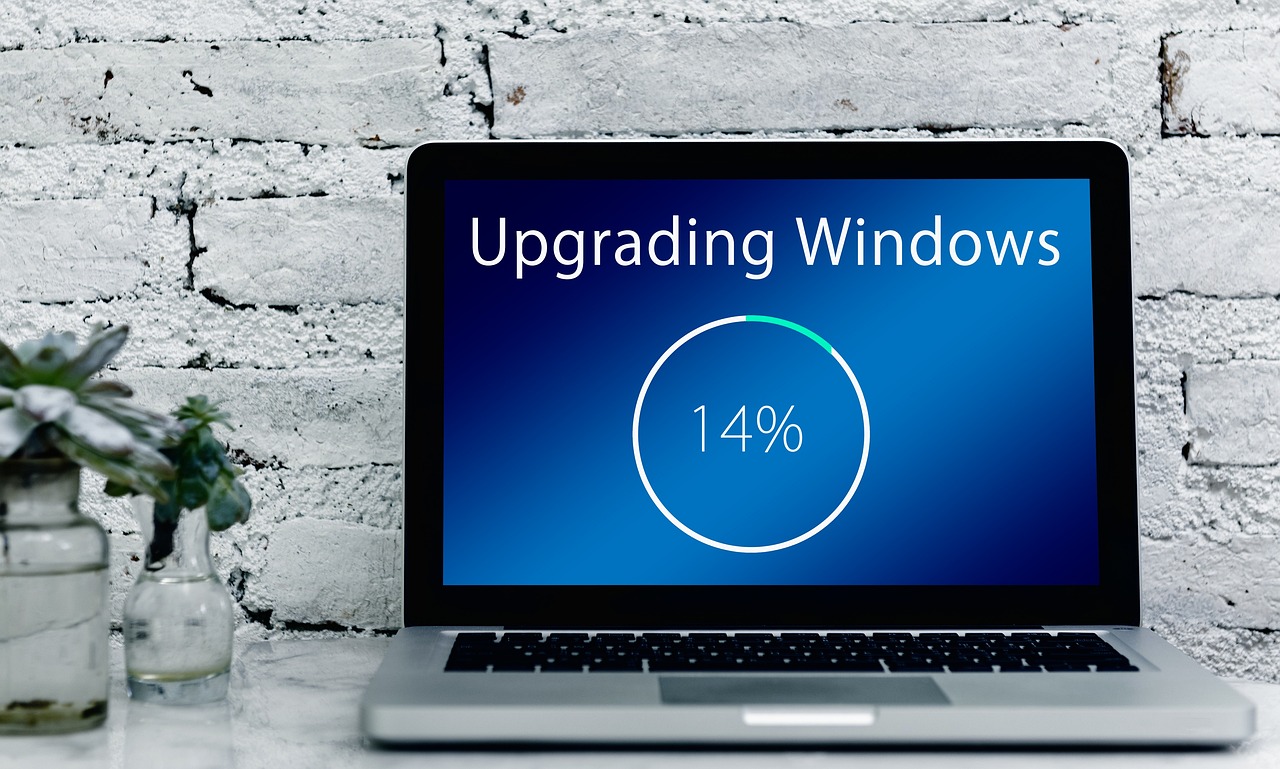
If updates still won’t install:
Download the Windows 11 Installation Assistant
Run the tool and follow prompts to complete a manual upgrade.
Security updates often require TPM 2.0 and Secure Boot to be enabled.
Restart your PC and enter BIOS (usually by pressing DEL, F2, or F10).
Enable TPM (under Security) and Secure Boot (under Boot settings).
For a safer tech experience, companies like Danvast recommend enabling these features to comply with modern IT standards.
If all else fails, use this method to reinstall Windows without losing your files:
Download the Windows 11 ISO from Microsoft.
Mount it and run setup.exe.
Choose Keep personal files and apps, and proceed.
Keeping your system updated is essential for data security, performance, and compatibility with the latest apps and hardware. Whether you're a regular user or part of a growing business, resolving Windows update issues ensures that your devices remain protected and optimized.
For more expert IT and digital transformation services, visit Danvast Group or explore digital solutions at Danvast.